Why Mac doesn't have right-click New File
If you came from Windows, this is one of the first things you noticed: right-clicking empty space in Finder doesn't offer a "New File" option. Apple designed macOS around apps creating their own documents, so the expectation is that you open an app first, then save a file. That workflow makes sense for word processors and Xcode projects, but it breaks down for the dozens of small files developers, writers, and power users create every day: a quick note, a config snippet, a shell script, a Markdown draft.
PowerClick fills that gap with a native Finder extension that adds a New File submenu directly to Finder's right-click context menu. No Automator scripts, no workarounds, no separate app to open.
How to add right-click New File to Finder
- Download PowerClick from the Mac App Store (one-time purchase, $9.99).
- Open System Settings → Privacy & Security → Extensions → Finder Extensions and enable PowerClick.
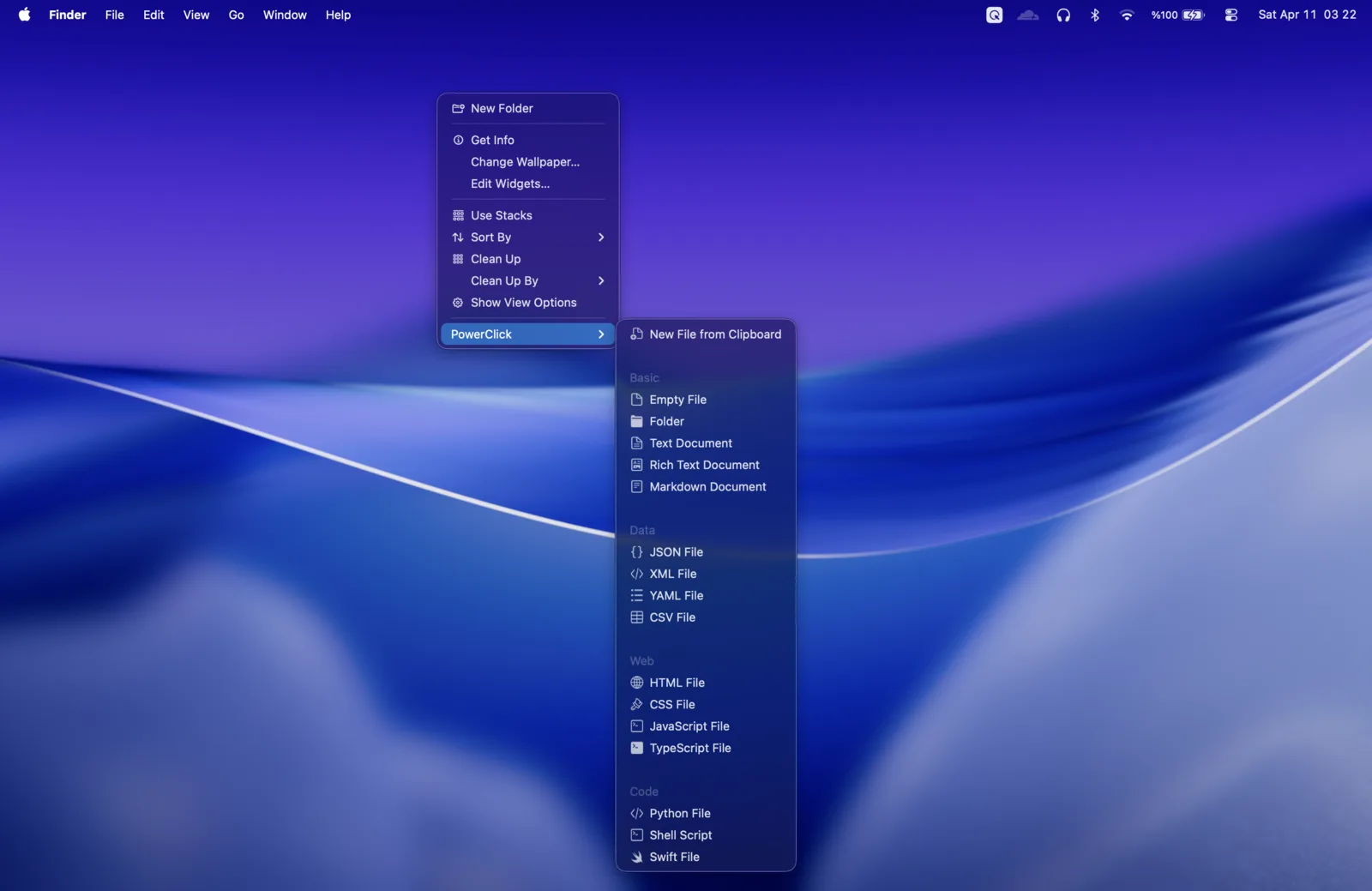
- Right-click any empty area inside a Finder window or on the Desktop. A PowerClick submenu appears with file templates.
The menubar icon turns green when the extension is active. That's all the setup needed.
File templates included
PowerClick ships with 15 built-in file templates plus New Folder, across four categories:
- Basic: Empty File, Folder, Text Document (.txt), Rich Text (.rtf), Markdown (.md)
- Data: JSON (.json), XML (.xml), YAML (.yml), CSV (.csv)
- Web: HTML (.html), CSS (.css), JavaScript (.js), TypeScript (.ts)
- Code: Python (.py), Shell Script (.sh), Swift (.swift)
Shell scripts get execute permission set automatically on creation. You can also add your own templates with custom names and icons using the Menu Editor.
New File from Clipboard
When you have text or an image on your clipboard, PowerClick shows an additional option: New File from Clipboard. Since version 2.5 it picks the file type from what you copied: JSON becomes a .json file, a table becomes .csv, a link becomes a .webloc, Markdown becomes .md, and plain text becomes .txt. A copied image or screenshot becomes a .png. The file is saved right in the current Finder folder, without opening any app.
Works in cloud folders too
PowerClick 2.0 added full cloud folder support. Right-click New File works inside iCloud Drive, Dropbox, Google Drive, and OneDrive folders just like local folders. Grant access once and PowerClick remembers it across sessions.
Smart naming prevents overwrites
When a file with the same name already exists in the folder, PowerClick auto-increments the filename. If notes.md is already there, the new file becomes notes 2.md. Your existing files are never silently overwritten.
Beyond New File: the full right-click workflow
New File is the most asked-for feature, but PowerClick also adds these actions to Finder's right-click menu:
- Copy Path: copy the full file path for one or multiple selected files
- Batch Rename: rename multiple files at once with 13 rules
- Copy To / Move To: move or copy files to any folder, with pinned favorites
- Open in Editor: open files or folders in VS Code or any installed editor
- Quick File Info: copy name, path, size, dates, or image dimensions instantly
- Convert: turn a photo, video, audio file or document into another format, such as HEIC to JPG or DOCX to PDF
- Undo Last Action: reverse the last move or rename with one click
Automator vs PowerClick for right-click New File
You can create a one-file-type New File shortcut using Automator Quick Actions, but the setup involves opening Automator, creating a workflow, saving it to the right folder, and manually enabling it in System Settings. Each file type requires a separate workflow. There is no template picker, no cloud folder awareness, and no way to create a file from clipboard content. PowerClick gives you all of that in a single $9.99 one-time purchase.