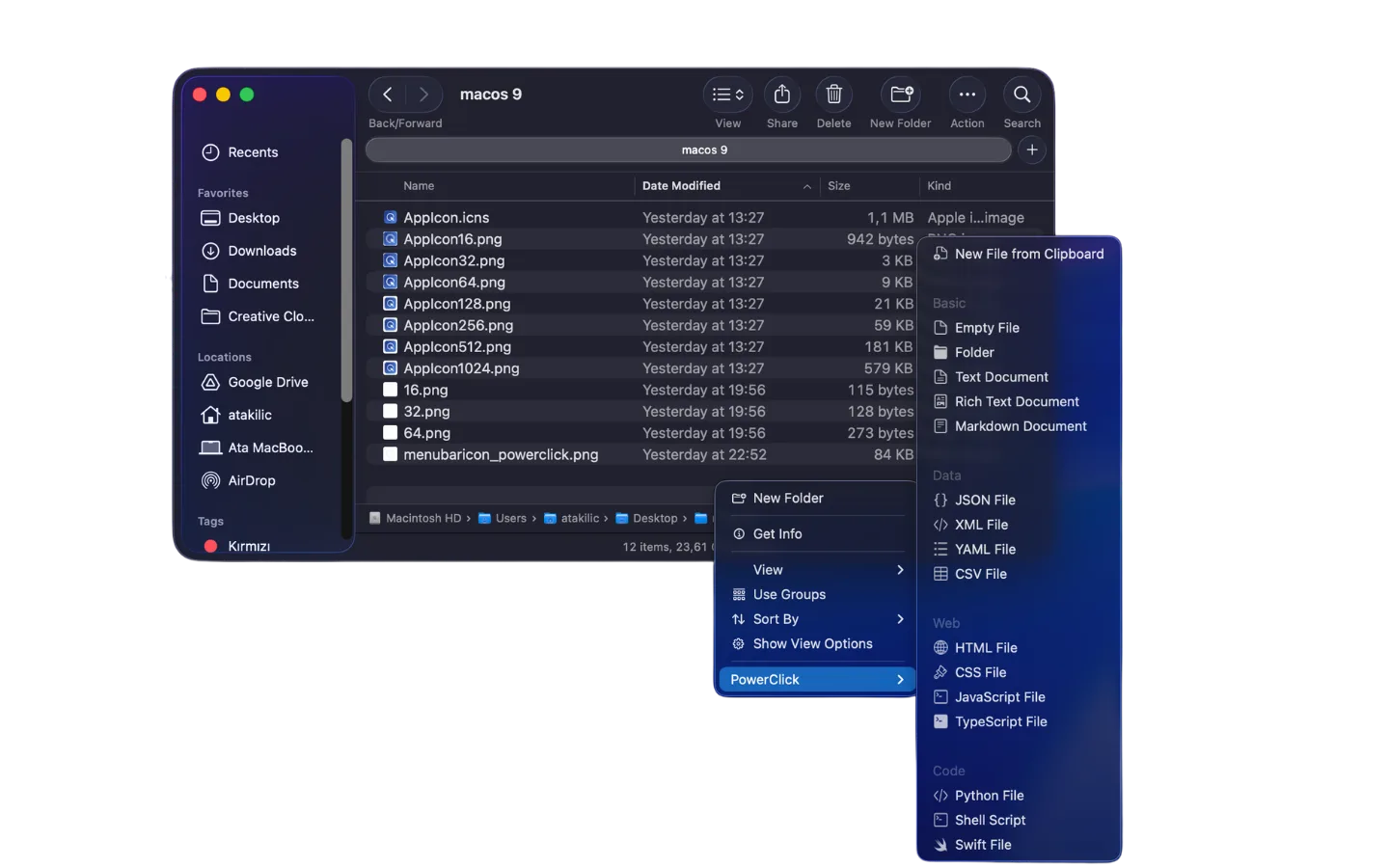
Why the default Finder right-click menu feels limited
The macOS Finder context menu covers the basics well, but everyday work quickly outgrows it. There is no built-in way to create a new file, copy a file path, rename multiple files at once, move a file to a specific folder without dragging, or open a folder in your code editor. These are things Windows users have had in their right-click menu for decades, and the absence is particularly felt by anyone who recently switched to Mac.
PowerClick adds all of these actions through a native Finder extension, so they appear in Finder's existing context menu, not in a separate panel or app window.
What PowerClick adds to the macOS right-click menu
- Convert: turn photos, videos, audio files, documents, Markdown and PDFs into another format. HEIC to JPG, MOV to MP4, video to GIF, DOCX to PDF and more. See every format.
- Compress for: shrink videos, photos and PDFs to fit Discord (10 MB), email (25 MB), or to half their size.
- Read QR & Barcodes: read the codes in an image or PDF, with a phishing check on every link.
- Transcribe: turn a recording or video into text or .srt subtitles, on-device (macOS 26 or later).
- New File: 15 built-in templates including TXT, Markdown, JSON, HTML, CSS, JavaScript, Python, and Shell Script.
- New File from Clipboard: picks the file type from what you copied. JSON becomes .json, a table becomes .csv, a link becomes a .webloc, and an image becomes a .png.
- Copy Path: copy the full file path for one or multiple selected files at once.
- Copy To & Move To: move or copy files to any destination folder, with pinned favorites and recent locations.
- Batch Rename: rename multiple selected files with 13 rules: prefix, suffix, sequential numbers, date prefix, snake_case, and more.
- Open in Editor: open files or folders in VS Code or any installed editor without dragging.
- Quick File Info: copy name, path, size, modification date, or image dimensions with one click.
- Cut & Move Here: cut files in one Finder location and move them to another, just like Cmd+X on Windows.
- Undo Last Action: reverse the last move or rename. Files go to the Trash, never straight to deletion, and anything you edited since is left alone.
Built for Finder, not a replacement
PowerClick is a native macOS Finder extension. It adds a PowerClick submenu to Finder's existing context menu, your usual Finder shortcuts, views, tags, Quick Look, and file behavior stay exactly the same. The extension is sandboxed and distributed through the Mac App Store.
How the Finder extension works
PowerClick uses Apple's Finder Sync extension API, the same system cloud storage apps use to show sync badges in Finder. The extension runs in its own sandboxed process, separate from Finder, and adds a PowerClick submenu to the right-click menu inside Finder windows and on the Desktop.
The actions in that submenu depend on what you clicked:
- Empty space in a folder: New File templates and New File from Clipboard
- A selected file: Copy Path, Open in Editor, Quick File Info, Copy To, Move To, plus Convert and Compress when the file is a photo, video, audio file, document or PDF
- Images and PDFs: Read QR & Barcodes; audio and video: Transcribe on macOS 26 or later
- Several selected files: Batch Rename, Copy Path for all of them, Copy To, Move To, and Convert when the files share a target format
- A selected folder: Open in Editor, Copy Path, Copy To, Move To
How to enable the Finder extension
- Install PowerClick from the Mac App Store and open it once.
- Open System Settings → Privacy & Security → Extensions → Finder Extensions.
- Turn on PowerClick.
- The PowerClick menu bar icon turns green when the extension is active.
If the submenu still doesn't appear, relaunch Finder (Activity Monitor → Finder → Relaunch). Full troubleshooting is on the Support page.
Using several Finder extensions at once
macOS lets more than one Finder extension run at the same time. If you already use the Finder extension of Dropbox, Google Drive or another Finder tool, PowerClick's submenu appears alongside theirs. Each extension manages its own entry in the right-click menu.
Who uses it
Developers get New File from templates, Open in VS Code from any Finder folder, Copy Path for terminal commands, and Batch Rename for project asset files.
Writers and students get instant Markdown and text file creation, snippets for repeated phrases, and clipboard-to-file for saving notes fast.
Windows switchers get back the right-click workflow they already know, New File, Move To, Copy Path, without needing to relearn anything.
Power users get Batch Rename with professional rules, Quick File Info for asset management, and cloud folder support for iCloud Drive, Dropbox, Google Drive, and OneDrive.
Automator vs PowerClick
Automator Quick Actions can add a basic right-click action to Finder, but the setup is manual and each action requires a separate workflow. There is no template picker, no multi-file support, no cloud folder awareness, and no Copy Path or Move To. PowerClick replaces all of that with a single app and a single right-click menu that stays consistent across all Finder windows.
What "right-click menu" means on macOS
The terms "right-click menu," "context menu," and "contextual menu" all refer to the same thing in macOS: the menu that appears when you Control-click or right-click a file, folder, or empty space in Finder. Apple's own documentation calls it the "contextual menu" or "shortcut menu," while most users search for "right-click menu" since that's the physical action that triggers it. PowerClick's actions appear in this menu regardless of which term you use to describe it.
Right-clicking without a two-button mouse
Not every Mac setup has a two-button mouse. On a MacBook trackpad, right-click is triggered by a two-finger tap or a Control-click. With Apple's Magic Mouse, right-click is enabled in System Settings → Mouse by assigning the secondary click to one side of the mouse surface. Whichever method you use to trigger it, the resulting context menu, including the PowerClick submenu, is identical.
Frequently confused: right-click menu vs. Dock menu vs. menu bar
It's worth distinguishing three separate macOS menus that new users sometimes conflate: the right-click (context) menu appears on files and folders in Finder; the Dock menu appears when right-clicking an app icon in the Dock and shows app-specific options like Quit or Open Recent; the menu bar is the persistent strip of menus at the top of the screen. PowerClick adds actions specifically to the first one, Finder's right-click context menu, plus its own icon in the menu bar for quick access to snippets and clipboard history.
Beyond Finder: the ShortClick ring
Since version 2.1, PowerClick is not only a Finder extension. ShortClick is a radial menu that opens under your cursor anywhere in macOS, triggered either by a keyboard shortcut you record yourself or by holding Command and Shift and right-clicking. Its inner ring holds five categories: favourite apps, saved snippets, clipboard history, automations that open a URL or run one of your own Shortcuts, and window snapping.
The two halves meet in one place. If Finder is frontmost with files selected when you open the ring, the app wedges stop being plain launchers and become "open the selection with this app" instead. Two guides cover this side of the app in full: the radial menu and launcher, and window snapping.
The ShortClick radial menu
Launch apps, paste snippets and run Shortcuts from one ring.
Window snapping on Mac
Halves, quarters, maximize, center and multi-display moves.
New file from right-click
Create any file type directly inside Finder folders.
Batch Rename on Mac
Rename multiple files at once from Finder's right-click menu.
Convert files on Mac
HEIC to JPEG, MOV to MP4, DOCX to PDF from the right-click menu.