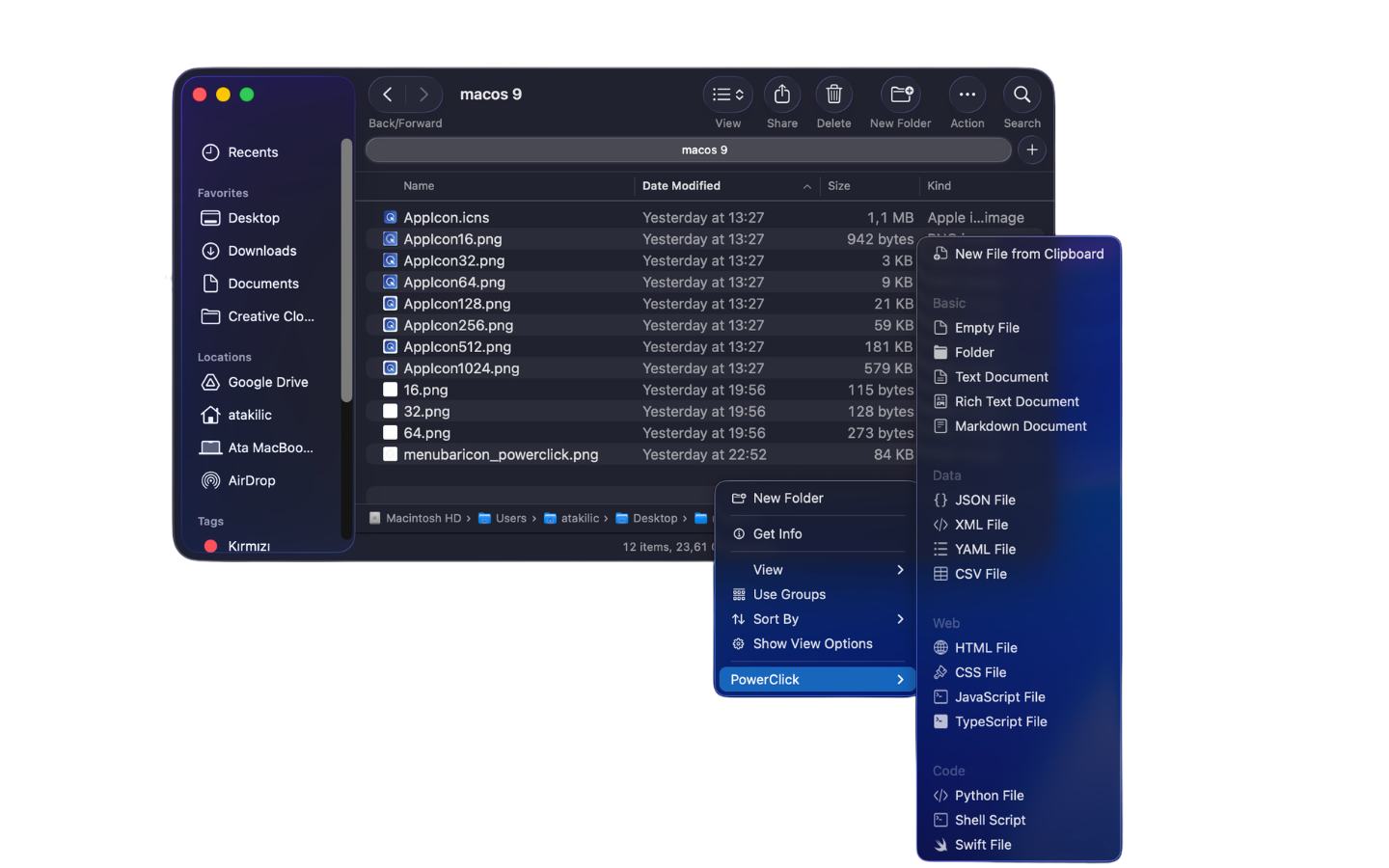
Why the default Finder right-click menu feels limited
The macOS Finder context menu is useful for common actions, but everyday work often needs more: creating a blank Markdown file, saving clipboard text as a file, copying a full file path, or pasting a reusable snippet. PowerClick adds those workflow actions directly where you already work.
What PowerClick adds to right-click
- New file templates for text, Markdown, JSON, HTML, CSS, JavaScript, shell scripts, and more.
- Copy Path for selected files, including multiple selected files as newline-separated paths.
- New File from Clipboard when your clipboard contains text.
- Snippet access for boilerplate, email replies, SQL, code blocks, and repeated text.
- Clipboard history from a lightweight menubar app.
Built for Finder, not a separate file manager
PowerClick is a macOS Finder extension. That means it works inside Finder windows and on the Desktop, while your normal Finder shortcuts, views, tags, previews, and file behavior stay unchanged.
Common right-click menu questions
Can PowerClick create a new file from the Finder right-click menu?
Yes. Right-click in a Finder folder or Desktop area and choose a file template such as TXT, Markdown, JSON, HTML, CSS, JavaScript, or shell script.
Does it work with the native macOS context menu?
Yes. PowerClick adds actions through a Finder extension, so the regular macOS context menu remains in place.
Is PowerClick only for developers?
No. Developers benefit from code and data templates, but writers, students, support teams, and anyone who repeats text or creates files can use it.